

Interactive Training Workbook
for Accenture Operations
Training Session Interactive Workbook
Training agenda 01. 02. Click agenda points to explore General Generate 03. 04. Enrich Organize 05. 06. Launch Analyze
How to login to your workspace Login to your branded workspace. Click on logo in the top right corner and select Corporate sign in. https://accenture-operations.relayto.com/accentureoperations/dashboard/
How to reset your password To reset your password, click on a section that says, “Forgot password?” and from there you’ll be led to a new page which will ask for your email or username. Once done a message will be sent to your email account for you to reset your password.
Personal workspace & brand workspace When logging into RELAYTO/ you might come across logging into your personal workspace, as well as switching to your brand workspace. Personal workspace – a service that only you can control Brand workspace – a service that it’s shared between you and other colleagues that have been invited
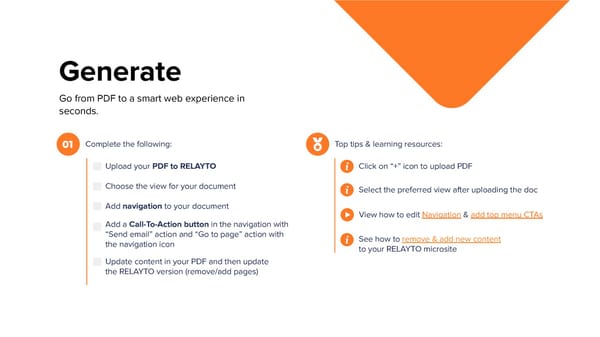
Generate Go from PDF to a smart web experience in seconds. Complete the following: Top tips & learning resources: 01 Upload your PDF to RELAYTO Click on “+” icon to upload PDF Choose the view for your document Select the preferred view after uploading the doc Add navigation to your document View how to edit Navigation & add top menu CTAs Add a Call-To-Action button in the navigation with “Send email” action and “Go to page” action with See how to remove & add new content the navigation icon to your RELAYTO microsite Update content in your PDF and then update the RELAYTO version (remove/add pages)
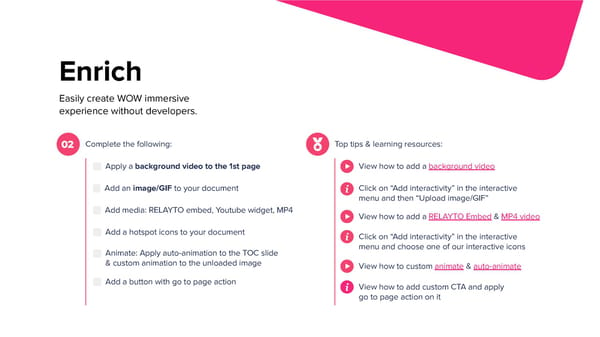
Enrich Easily create WOW immersive experience without developers. Complete the following: Top tips & learning resources: 02 Apply a background video to the 1st page View how to add a background video Click on “Add interactivity” in the interactive Add an image/GIF to your document menu and then “Upload image/GIF” Add media: RELAYTO embed, Youtube widget, MP4 View how to add a RELAYTO Embed & MP4 video Add a hotspot icons to your document Click on “Add interactivity” in the interactive menu and choose one of our interactive icons Animate: Apply auto-animation to the TOC slide & custom animation to the unloaded image View how to custom animate & auto-animate Add a button with go to page action View how to add custom CTA and apply go to page action on it
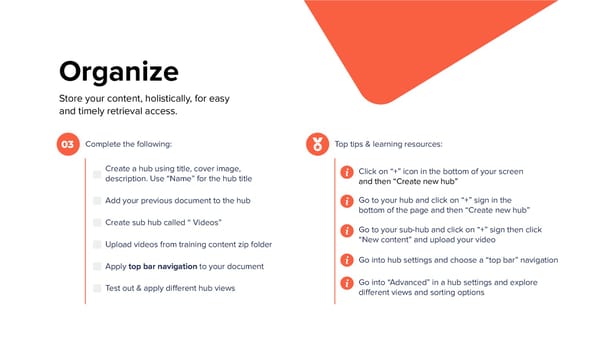
Organize Store your content, holistically, for easy and timely retrieval access. Complete the following: Top tips & learning resources: 03 Create a hub using title, cover image, Click on “+” icon in the bottom of your screen description. Use “Name” for the hub title and then “Create new hub” Go to your hub and click on “+” sign in the Add your previous document to the hub bottom of the page and then “Create new hub” Create sub hub called “ Videos” Go to your sub-hub and click on “+” sign then click “New content” and upload your video Upload videos from training content zip folder Go into hub settings and choose a “top bar” navigation Apply top bar navigation to your document Go into “Advanced” in a hub settings and explore Test out & apply different hub views different views and sorting options
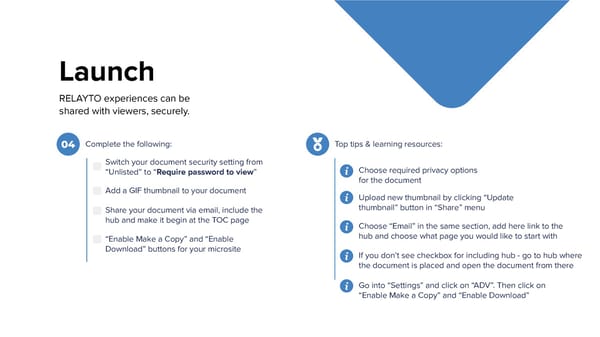
Launch RELAYTO experiences can be shared with viewers, securely. Complete the following: Top tips & learning resources: 04 Switch your document security setting from Choose required privacy options “Unlisted” to “Require password to view” for the document Add a GIF thumbnail to your document Upload new thumbnail by clicking “Update thumbnail” button in “Share” menu Share your document via email, include the hub and make it begin at the TOC page Choose “Email” in the same section, add here link to the hub and choose what page you would like to start with “Enable Make a Copy” and “Enable Download” buttons for your microsite If you don’t see checkbox for including hub - go to hub where the document is placed and open the document from there Go into “Settings” and click on “ADV”. Then click on “Enable Make a Copy” and “Enable Download”
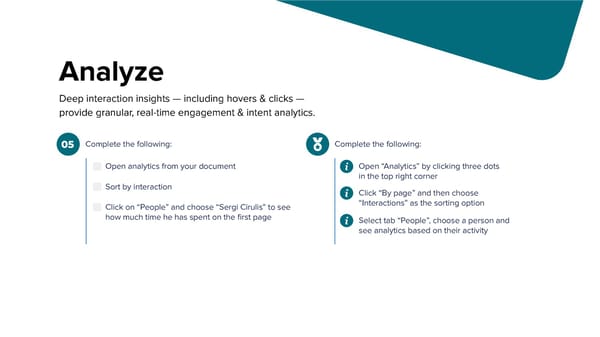
Analyze Deep interaction insights — including hovers & clicks — provide granular, real-time engagement & intent analytics. Complete the following: Complete the following: 05 Open “Analytics” by clicking three dots Open analytics from your document in the top right corner Sort by interaction Click “By page” and then choose “Interactions” as the sorting option Click on “People” and choose “Sergi Cirulis” to see how much time he has spent on the first page Select tab “People”, choose a person and see analytics based on their activity
Thank you!